Custom dropdown questions can be very useful for accurate data collection and allocating resources that require quantity restriction. The most common uses of this is for T-Shirt Size selection and Wave Allocation. This guide will show you how to add a dropdown question and edit the quantity availability.
How to Create a Custom Dropdown Question:
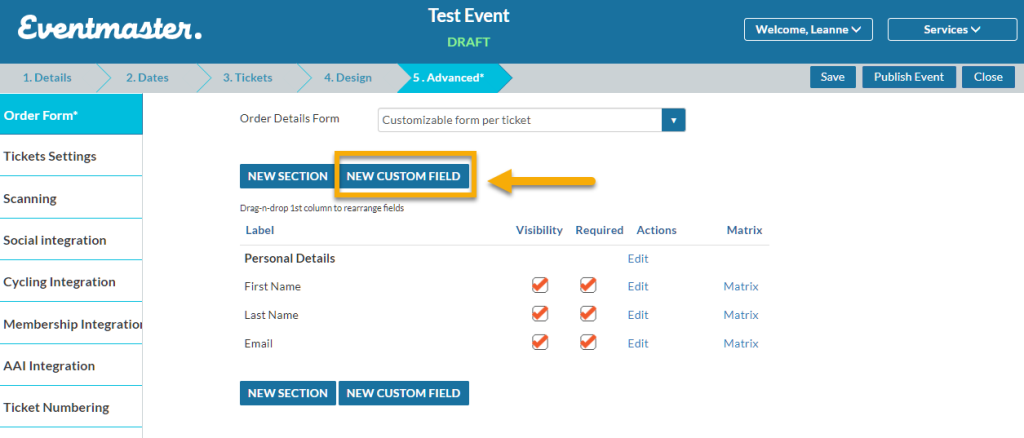
In the Order Form section click on “New Custom Field”
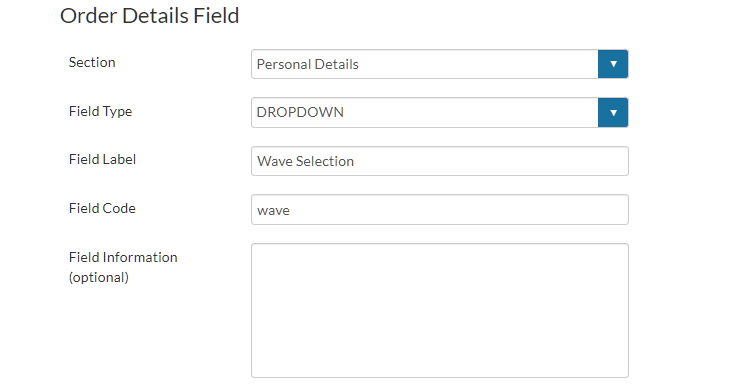
Select the section you want for this to appear and select Dropdown as the field type. The Field label is what appears for the customer when booking (i.e. The order form question). The Field Code is the heading for your booking report. Note: The field code should be all one word and contain no symbols.
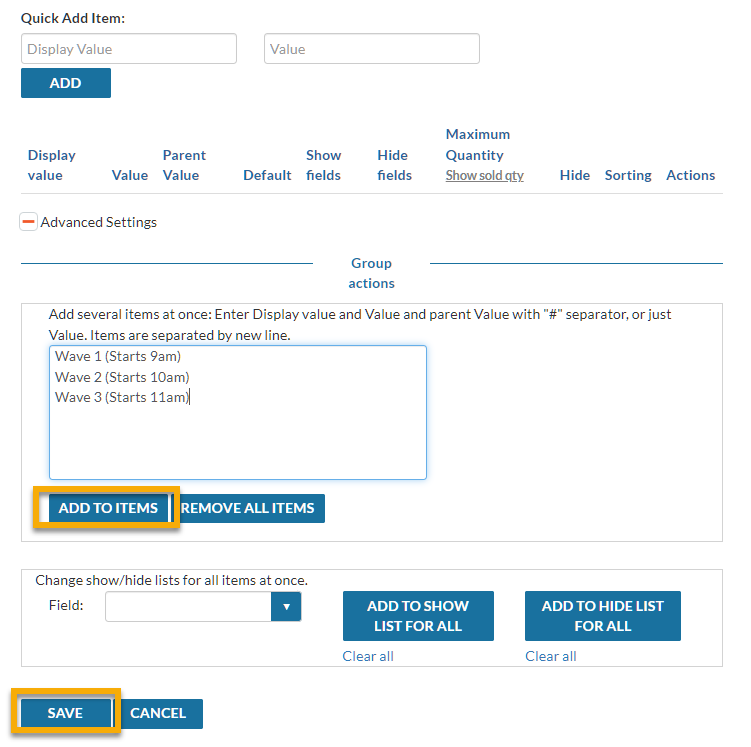
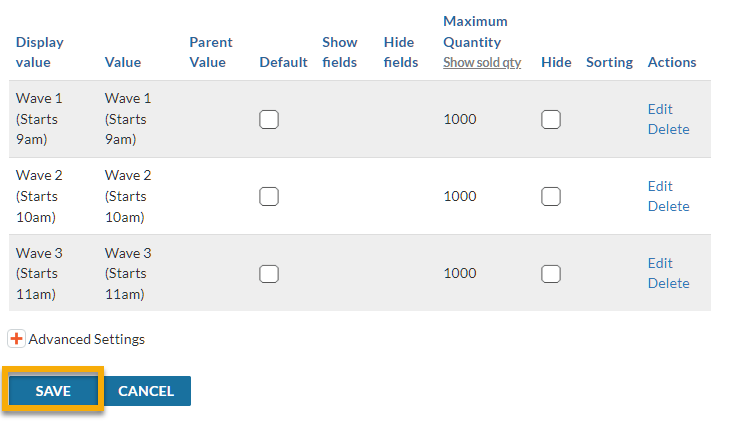
Expand the Advanced Settings tab and input your Wave Details (with start times) as applicable. This is what will appear as a dropdown item for the participant to select. If your dropdown is for t-shirt sizes this is where you would input (Small, Medium, Large etc). Please ensure that all items are entered on a new/separate line as shown in the example below. Click Save.
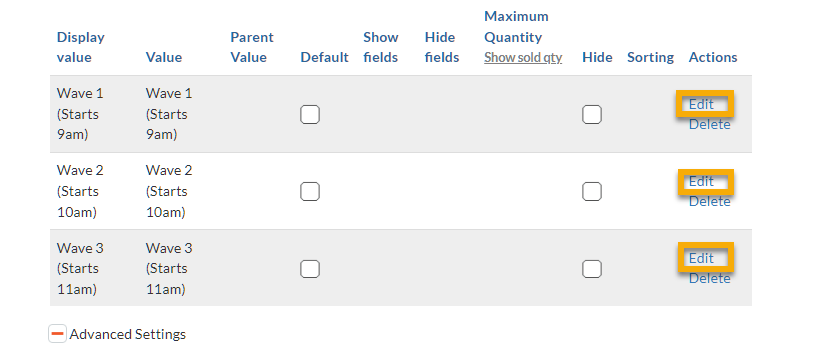
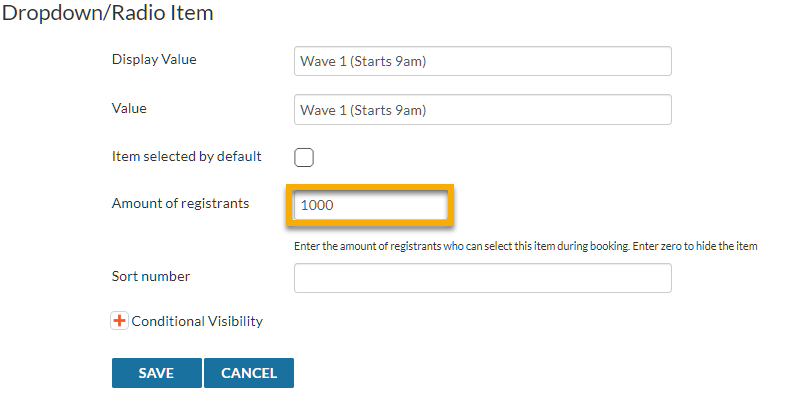
Go back in and edit your new additions. This is where you will enter in the quantity of each wave.
Enter your available quantity in the “Amount of Registrants” section.
Repeat the above steps for each entry and the Save.
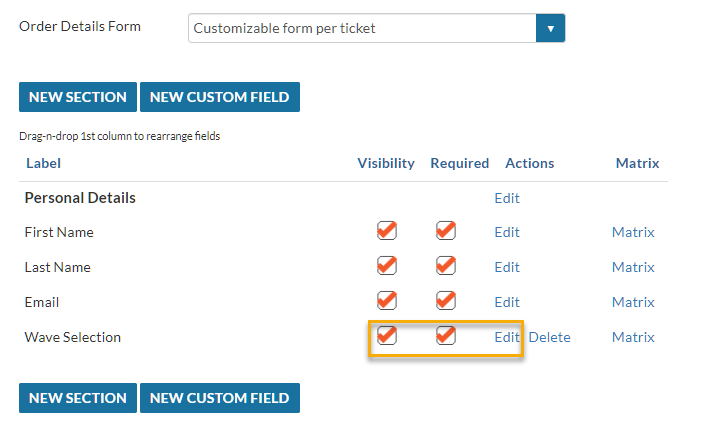
You can control the Visibility and if the question is required by participants as normal. You can also edit the Wave selection options, including quantities at any time. Once the waves are full, please switch the question to optional or add in a new option to the wave dropdown.
Top Tips:
You may want to consider printing the Dropdown value selected for each person on their ticket. This can help during collection/registration flows on the day. View Ticket Customisation Guide HERE.
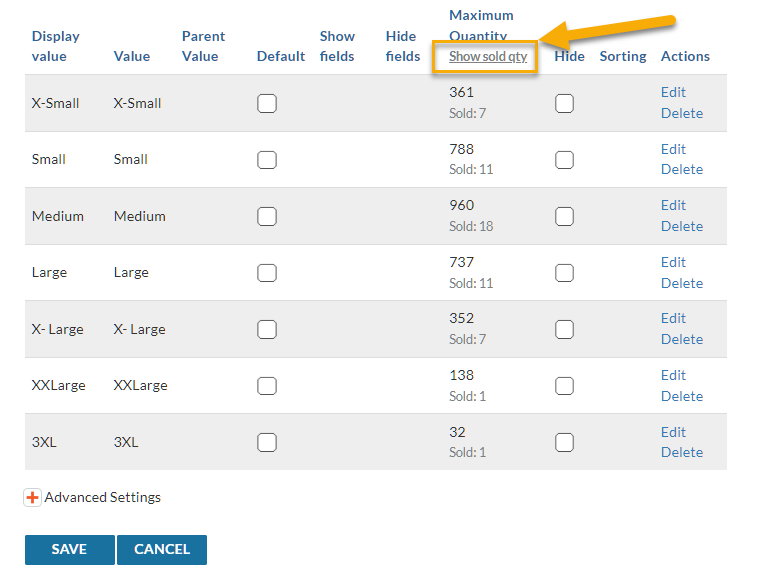
To easily see what availability is remaining at a glance, click on the “Show Sold Quantity” option in the question editor.
We use cookies on our website to give you the most relevant experience by remembering your preferences and repeat visits. By clicking “Accept”, you consent to the use of ALL the cookies.
This website uses cookies to improve your experience while you navigate through the website. Out of these, the cookies that are categorized as necessary are stored on your browser as they are essential for the working of basic functionalities of the website. We also use third-party cookies that help us analyze and understand how you use this website. These cookies will be stored in your browser only with your consent. You also have the option to opt-out of these cookies. But opting out of some of these cookies may affect your browsing experience.
Necessary cookies are absolutely essential for the website to function properly. This category only includes cookies that ensures basic functionalities and security features of the website. These cookies do not store any personal information.
Any cookies that may not be particularly necessary for the website to function and is used specifically to collect user personal data via analytics, ads, other embedded contents are termed as non-necessary cookies. It is mandatory to procure user consent prior to running these cookies on your website.