
The second section of the event editor relates to the date that an event will take places.
For the most part events have 1 what we will refer to as “timeslot” – this means that the
event has 1 date and 1 start and finish time. To simplify this, the majority of what we
define as sporting events have 1 timeslot and are straight forward to setup.
Sporting events are generally setup as follows:
·
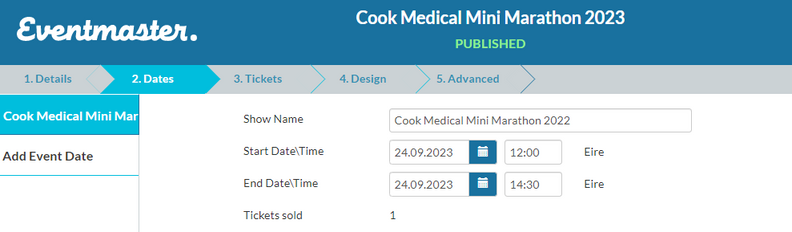
- Press the “add event date” on the left hand side tab
- Enter the show name/timeslot name
- Start time and date
- End time and date
- These 4 parameters are the basics of the single timeslot setup.
Enable Quantity Override
If you have a single day event that has a maximum capacity of ticket sales it will be set
at the level. This parameter will override what will be set in the quantity limits on ticket
types (next section)
By checking the “Enable Quantity Override” you will then need to enter a figure that will
determine how many tickets can be sold for that timeslot.
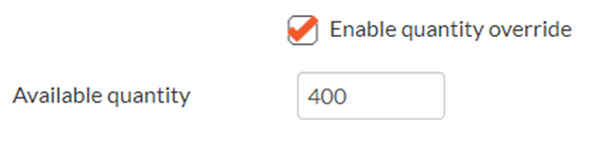
N.B. – if you set ticket quantity limits in the tickets section the above quantity override
will “override” those quantities.
For example, if you had 300 Adult Tickets and 300 Child Tickets available. By selecting
‘Enable Quantity override, the system will stop ticket sales once it reached 400 (mix of
adult & children) as set in the Available Quantity box above.
Venue Information
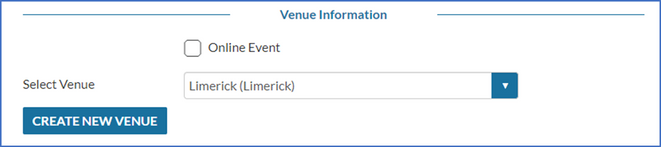
The venue information will determine where the event is on. In the dropdown above it
will show all of the venues that have been previously added by this event organiser. If
the venue you want is in the dropdown you can select it, and if not, you will need to
“Create New Venue”.
What is “Online Event”?
Online event refers to an event where there is no physical venue. This function was
implemented to facilitate virtual events. By checking that box for “Online Event” there
will be no need for a venue at all.
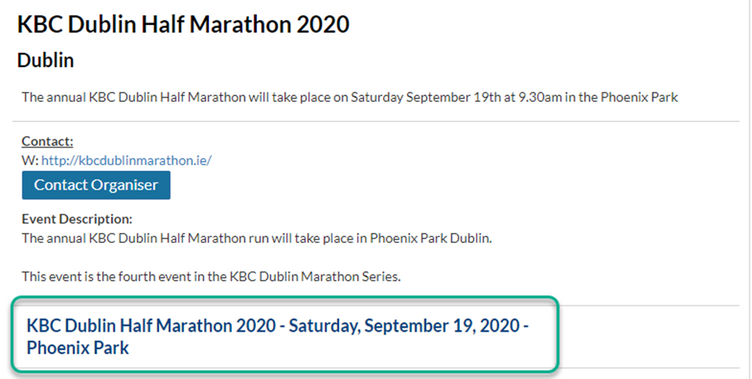
For events that only have one timeslot, they will appear on the event pages as follows:
Multiple Timeslot Events
Some events will have multiple event dates and times. For those events that require
multiple timeslots you can simply “Add New Event Date” and continue with that process
until you have setup all timeslots.
You will see your timeslots that you have configured listed on the event page as follows:

These will all show on the event page after they have been added to the Dates section
of the event editor.